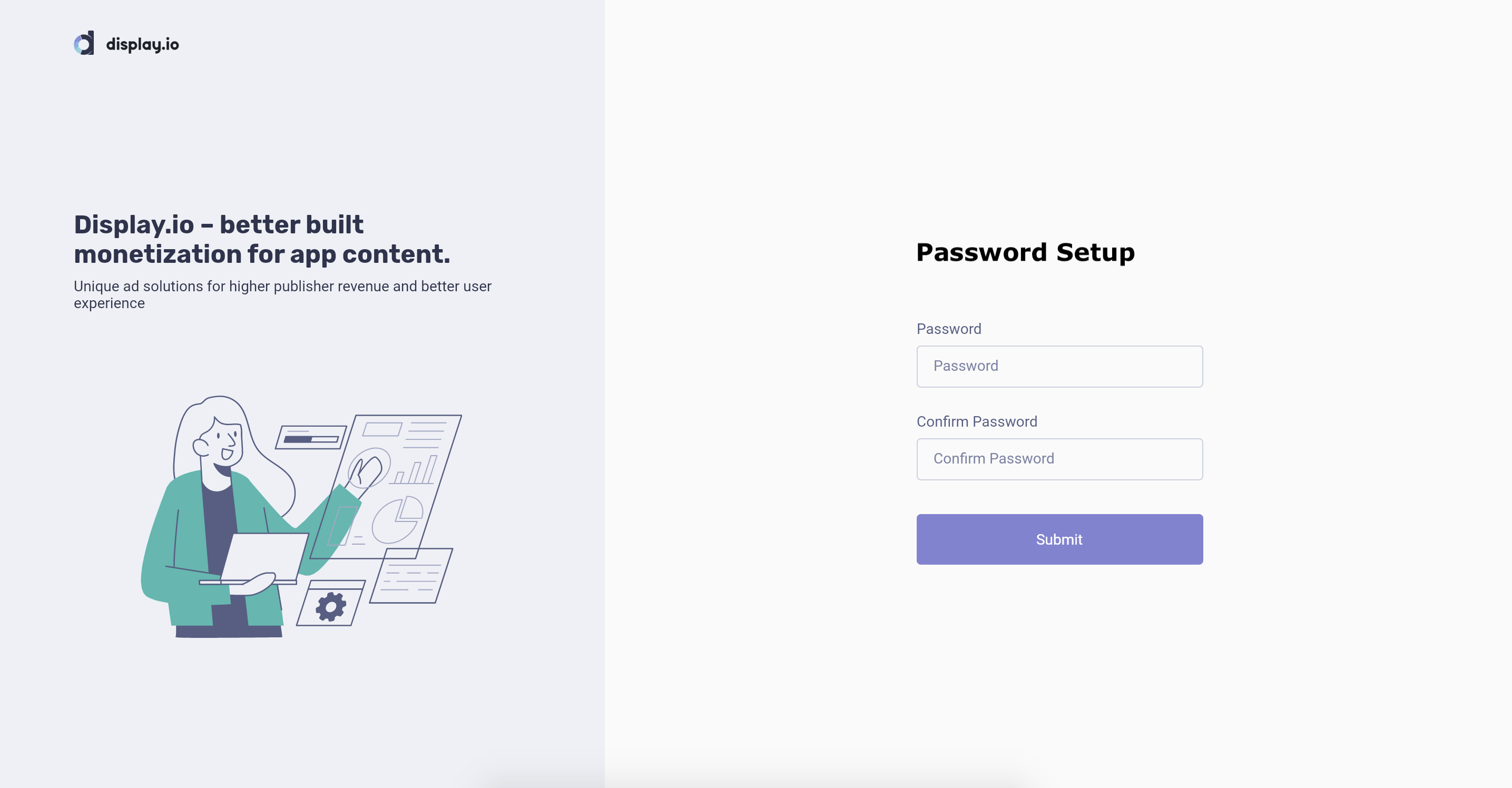
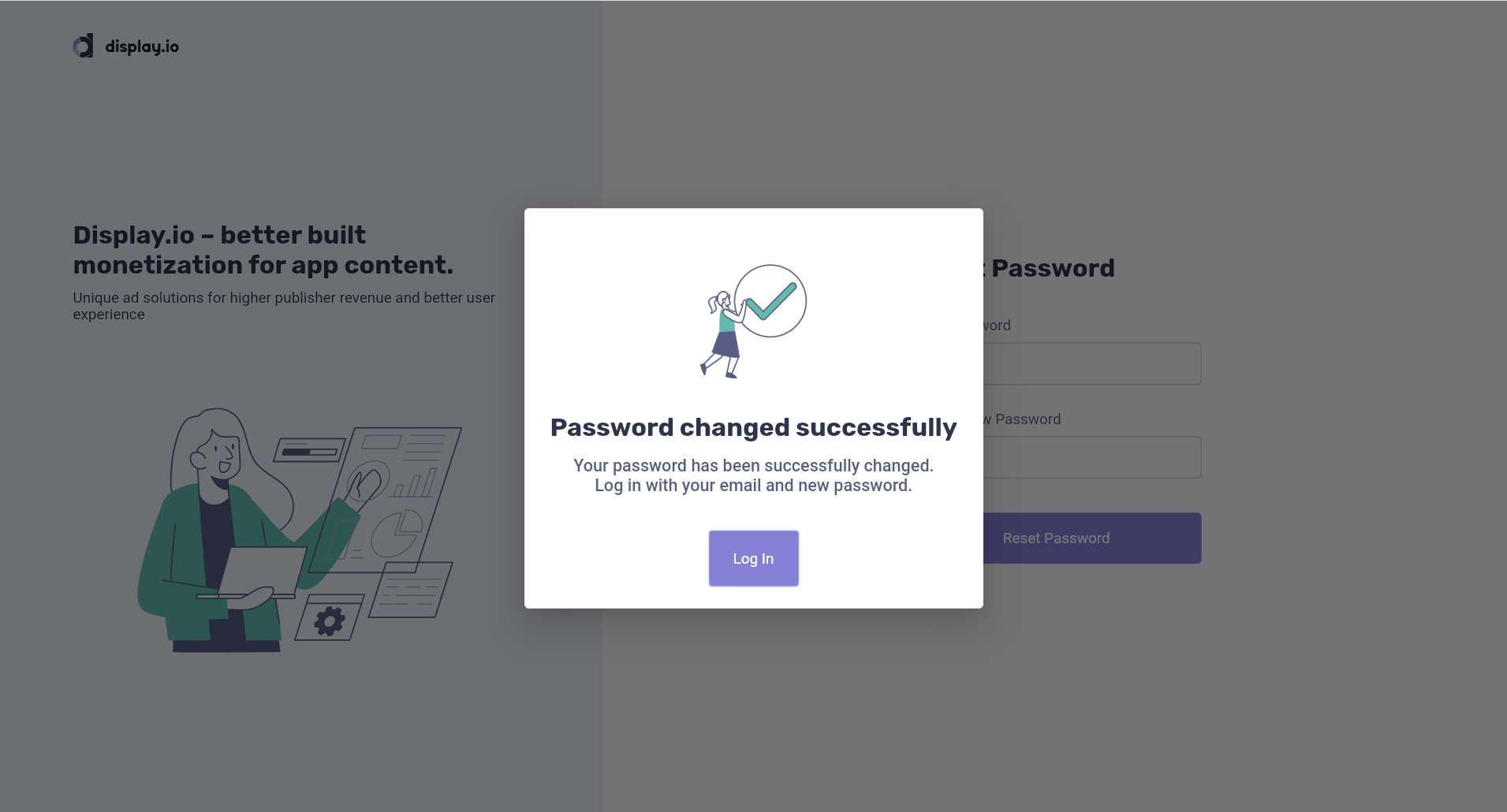
To gain access to the platform please request a User Activation Link from your display.io rep.
This will redirect you to Password setup where you can enter and confirm a new password.
Password Reset
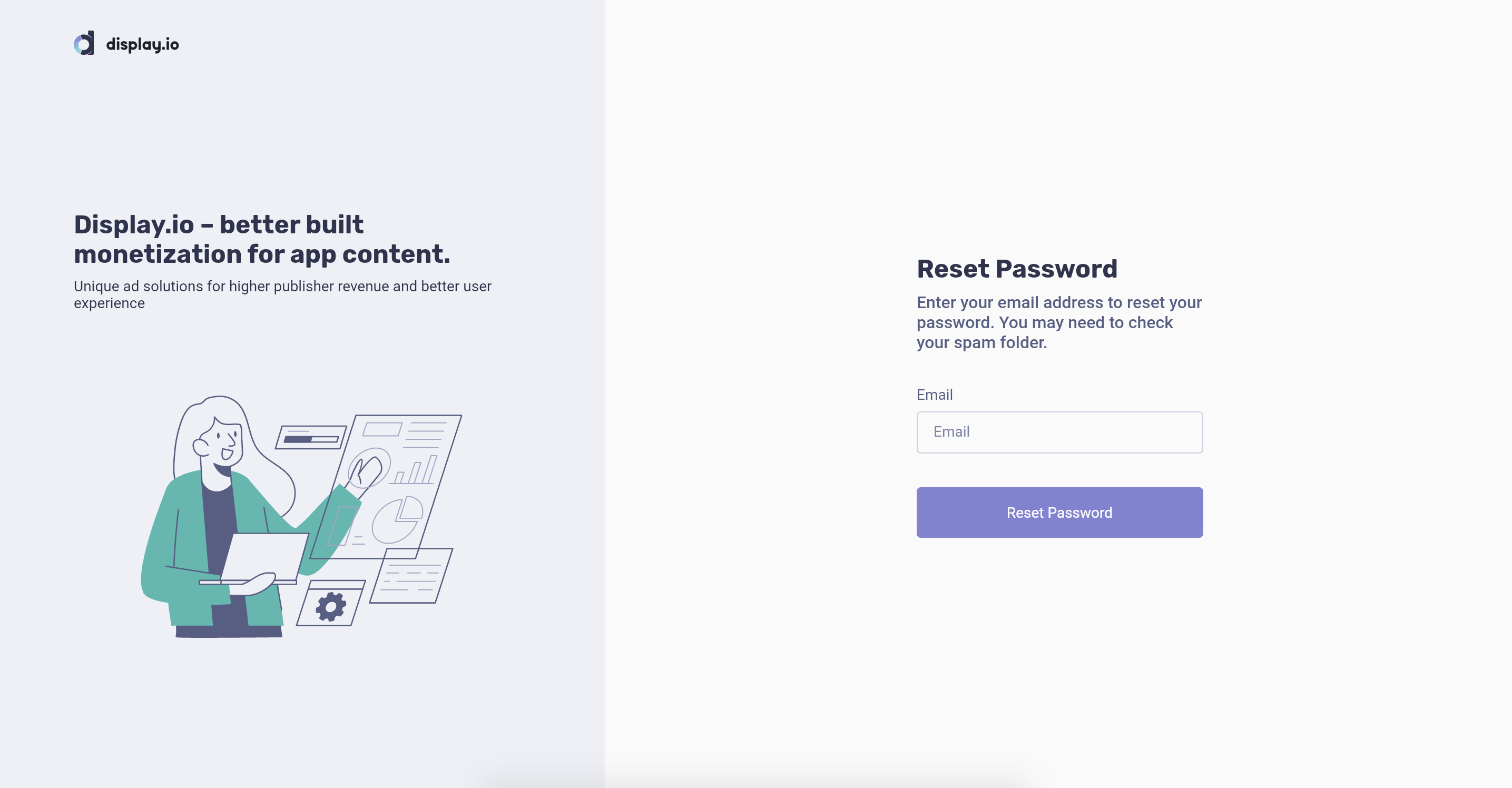
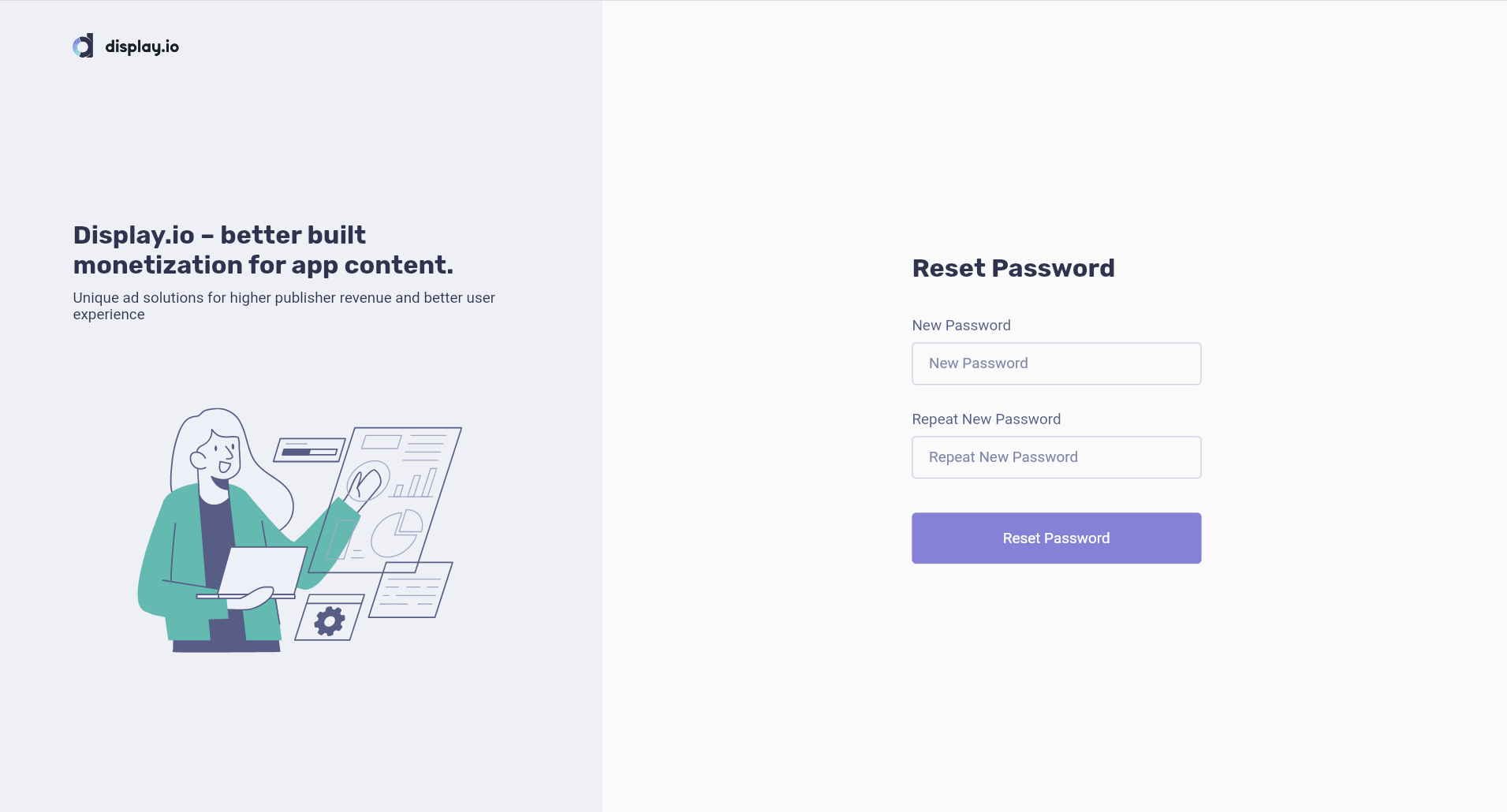
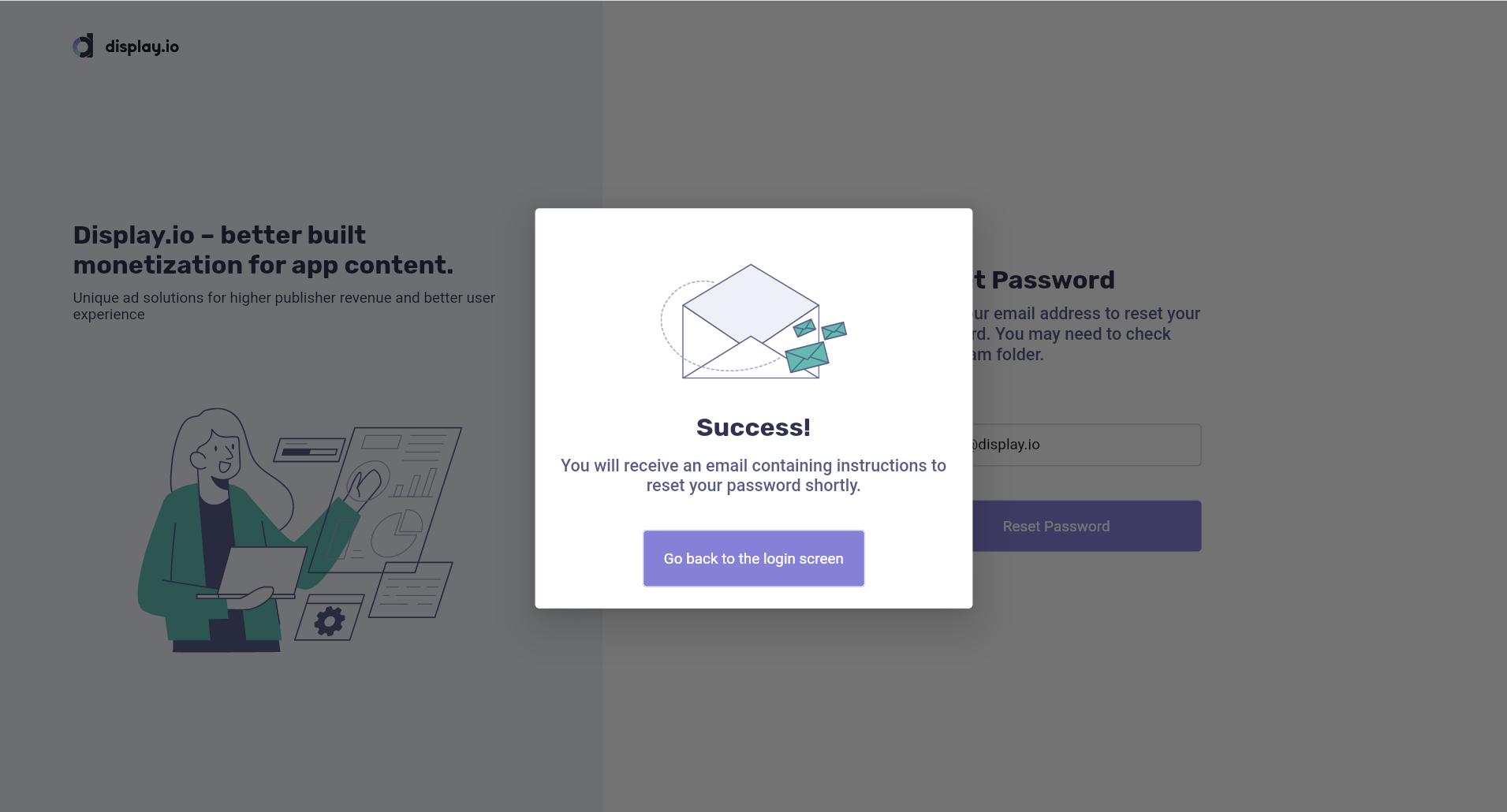
In case you don’t remember your password – use the Forgot Password link on the Log In page. Once you submit your account email address you will receive an email with a link to reset your password.
Inventory Management
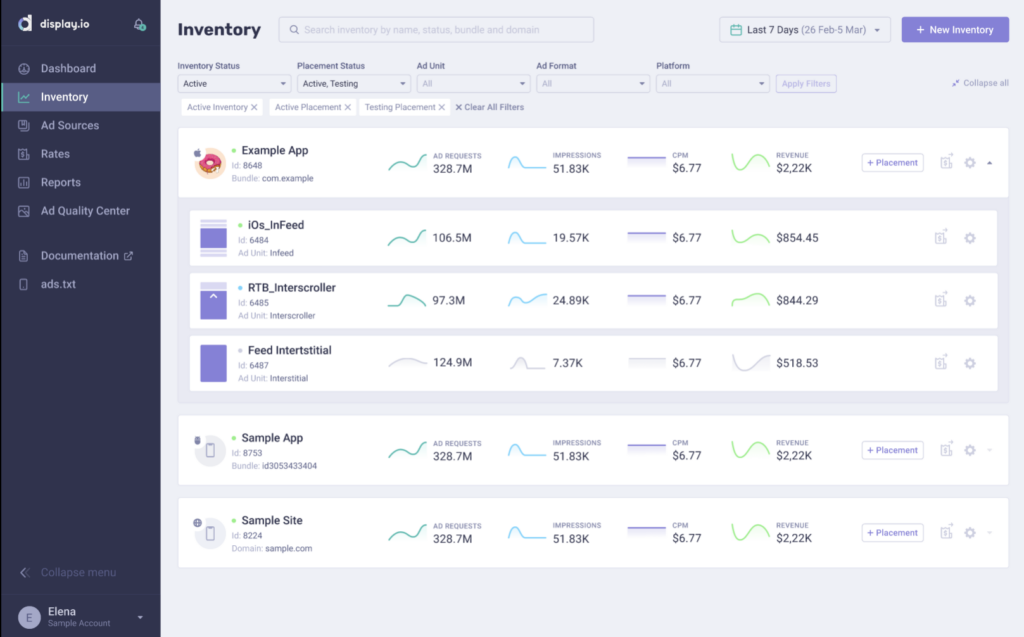
Inventory Management provides publishers with an option to manage all inventory monetization from one dashboard. The default time zone for all the platform statistics is EST.
1. To add new Inventory click the  button and complete the form field:
- Platform (iOS, Android, Web Mobile)
- Status (Active (be default), Inactive)
- Inventory Content Category (IAB list)
- Children Directed (confirm that your inventory is not children directed according to COPPA and GDPR)
- Application Name (name within the platform UI)
- Package Name/ Bundle ID (iOS example: “id7777777”, Android example: “com.example”)
- Integration (SDK, JS tag)
> For mobile websites - Site Name (name within the platform UI)
- Domain
- Privacy Policy URL
Submit the form by clicking the  button.
2. Next, set up Placements for ad serving under the recently created inventory parent.
Click the  button to open the “New Placement” form field.
Placement configuration allows publishers to configure the ad unit and format that will be used to monetize the inventory. A new placement should be set up for every placement in the app or site. The name of each placement should correspond with the location of the placement in the app or site.
Please Note:
Status ‘Testing’ serves the display.io test ads
Status ‘Active’ serves live ads
Click to submit the completed form. The newly created placement will now be nested under the Inventory parent.
Click the  icon to set up rates specific to Inventory or Placement.
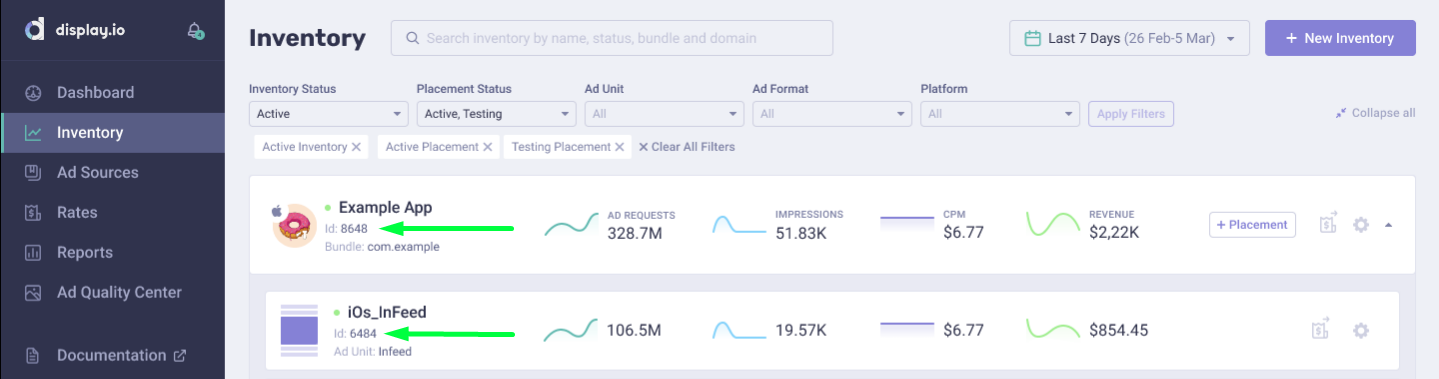
3. Locating your Inventory and Placement ID’s can be done from the Inventory section: