This article explains how to set up and run the display.io ads SDK side by side with your existing mediation, whether your integration with display.io is a Dedicated Placement or Shared Placement.
Dedicated placement
Integrate the display.io SDK into a dedicated placement where display.io is the only source of demand. This simplifies the integration and is best for publishers using display.io to open up net new inventory on their app or mobile site.
Please consult your display.io contact on placement recommendations and read this article on placement best practices. Engineers performing the integration should reference this Integrations section on this page
Shared placement
For publishers that have an existing placement and want to supplement it with display.io ad products – e.g integrate display.io interscroller into an existing placement currently running Medium Rectangle ads – we recommend the following.
Program a new waterfall to include display.io ads and your mediation stack. The waterfall order will be predetermined, so you will need to decide which SDK to call first. Display.io will always guarantee a minimum floor price that is typically higher than the best performing demand source in your existing waterfall. Please consult your account manager or sales rep for this floor price as it will enable you to determine the order of calls in the new waterfall being programmed.
There is no latency risk as a result of programming a new waterfall with a new vendor outside of the mediation stack. App environments cache ads to memory before the ad placements appear in the app. This means there will always be an ad ready before a new placement appears to on the screen.
The following visual example uses Google Ad Manager mediation as a reference for how to think about the new waterfall flow (this flow is the same for any mediation platform).
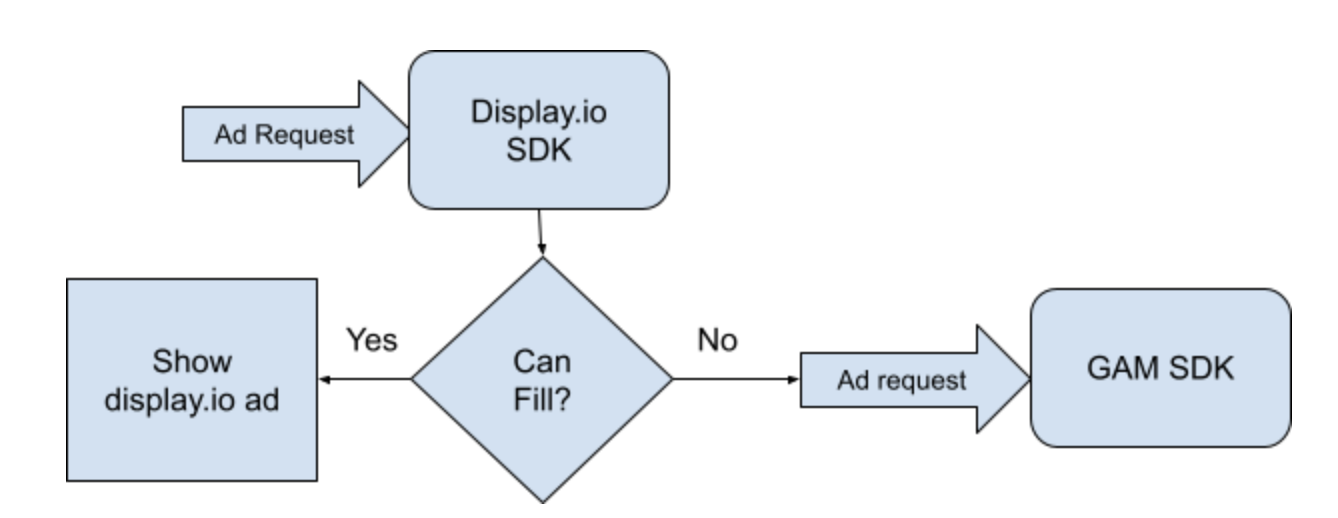
Next, please review the code sample below of how to program the new waterfall.:
private Ad loadedAd;

private void requestAd() {
 //request code simplified to show only the main point. To find more
about requesting and loading ads refer to this section.

   if (adIsLoaded ) {
      loadedAd = ad;
    }
}
When it’s time to show the ad you must check if display.io SDK has an ad. If an ad is returned then inject it into to your reserved placement. Here is an example for Interscroller ad (code may vary per ad unit type):
 // this code is supposed to be inside your RecyclerView adapter

@Override
    public void onBindViewHolder(@NonNull final RecyclerView.ViewHolder holder, final int position) {

        if (holder.getItemViewType() == AD_VIEW_TYPE) {
            if (loadedAd != null) {
                InterscrollerPlacement placement =
                        (InterscrollerPlacement)Controller.getInstance()
                                              .getPlacement(placementId);
                InterscrollerContainer container =
                         placement.getContainer(context,
                                              requestId,
                                                  null);
                container.bindTo((ViewGroup) holder.itemView);
            } else {
                // add GAM ad instead
            }
        }
    }
What are the ad specifications of App Interscroller?

App Interscroller is a vertical content monetization solution for publishers driving monetization through vertical video and display advertising.
App Interscroller general Specifications
| Integration: | Display.io SDK | |
| Platforms: | Android, iOS | |
| Ad Format: | Video & Display (inc. Rich-Media) | |
| Ad Size: | Display 320×480 Full Screen (IAB Mobile Interstitial Portrait size)
Vertical Video |
|
| Adapters: | GAM (Android, iOS), AdMob (Android, iOS), Max Applovin (Android, iOS) |